From brief to first version.
Turn a software idea into stages, assigned work, and files you can inspect.

Loading the city · 0%

Your AI team · One connected workspace
Plan, build, and review software, research, and content with an AI team you can direct.
Local-first. Your workspace, on your machine. ↗01 / Your city
Each part of your project has a place. Your team drives between them, doing the work.
02 / Plan
Your project lead turns a rough brief into stages, assignments and review points.
03 / Team · Coding HQ
Open an agent’s conversation, inspect terminal output, and keep files and context close.
04 / Review · Command Citadel
Answer questions, review results, and decide what reaches your project.
05 / Early access
Join the list to hear when early access is ready.
Get early access ↗The city · 4 of 24 departments
The team
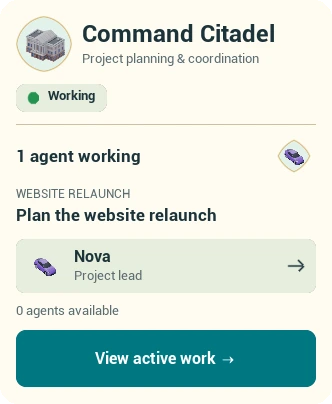
Each agent drives to the building where its work is. These six are the example project’s team.
01 / 06
Project lead · Command Citadel
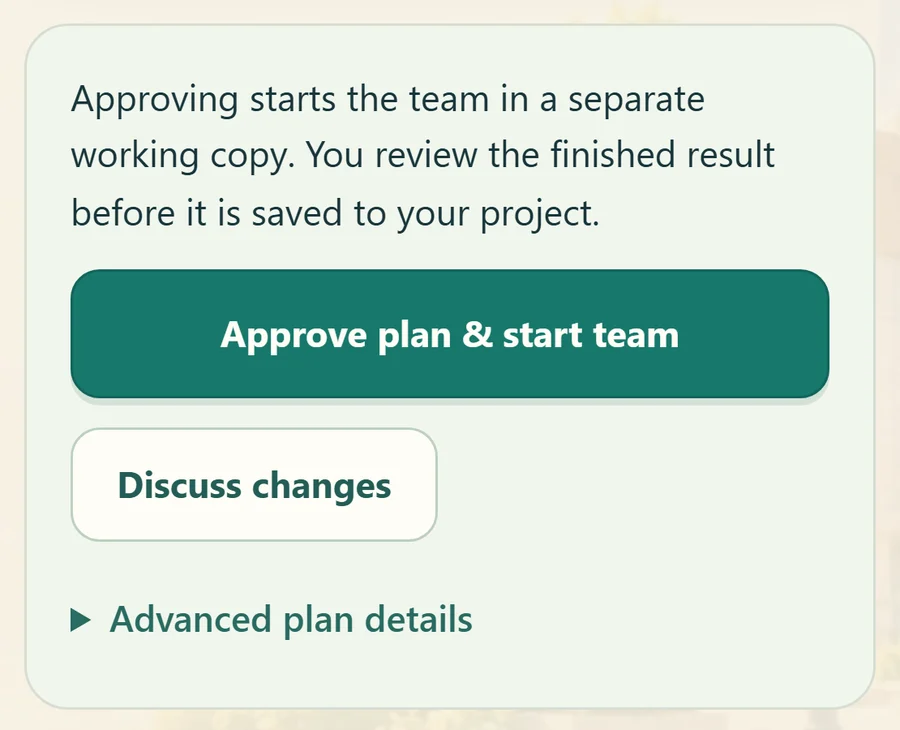
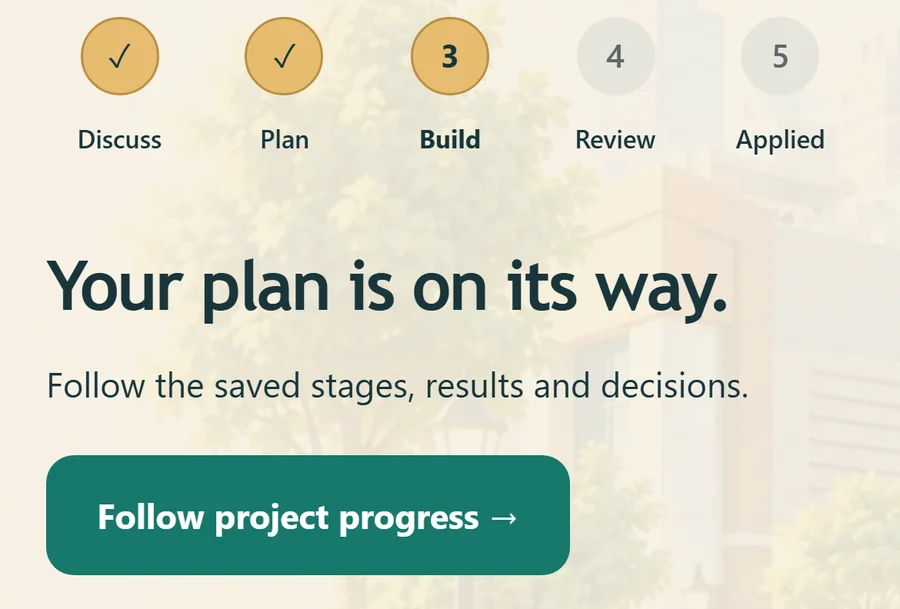
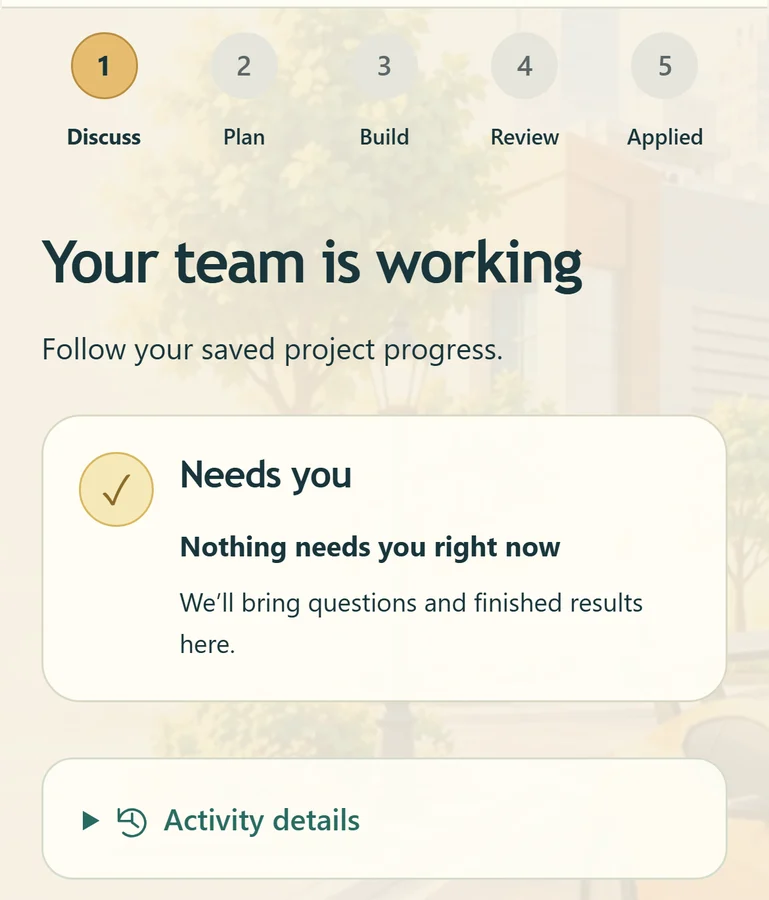
Inside the product · actual app screens
Captured from the current local build with an example project. Not a live agent session.
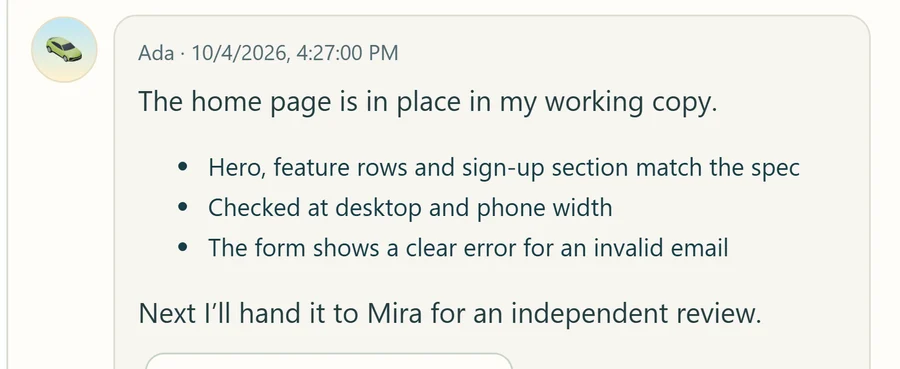
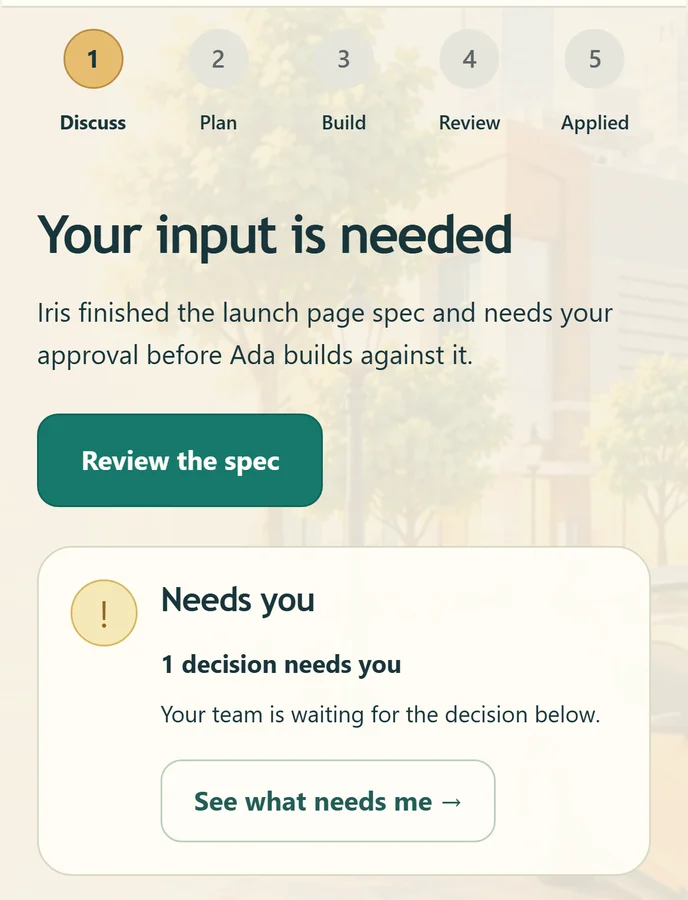
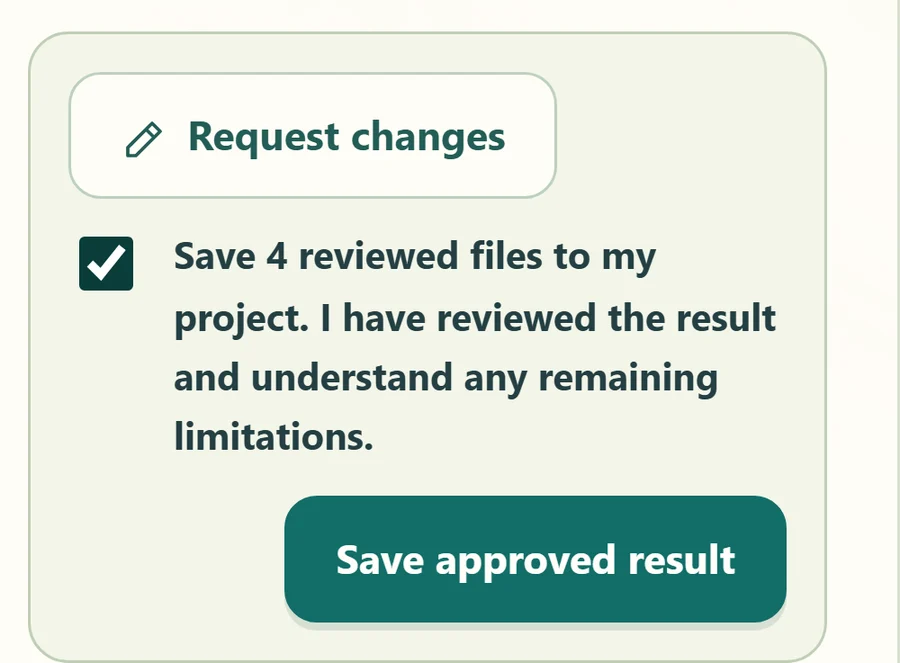
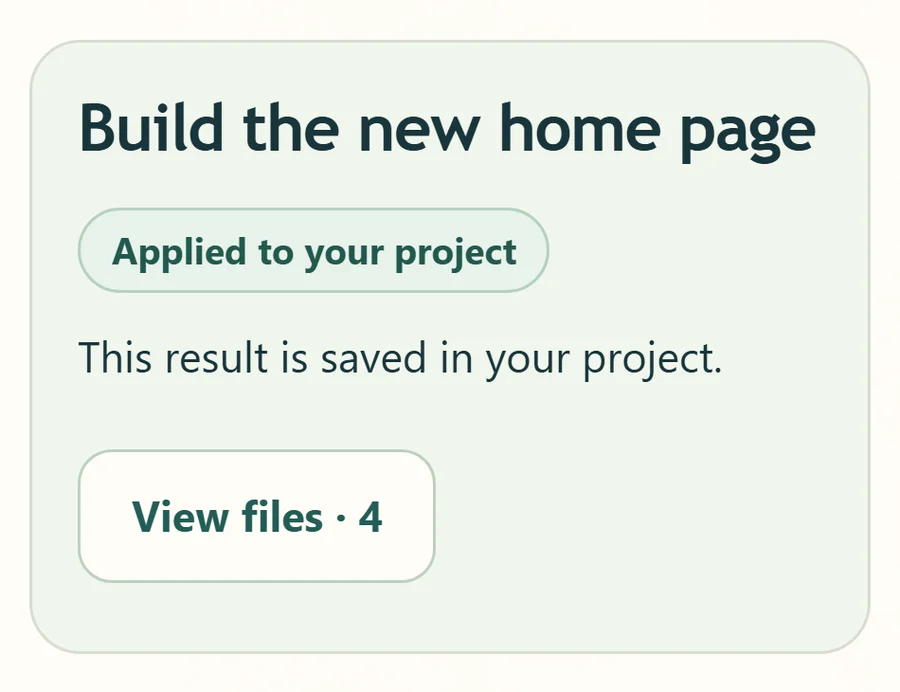
Watch
A 24-second tour recorded in the desktop game: the living city, the Coding HQ team, and Files & review.
Recorded in the game
Turn a software idea into stages, assigned work, and files you can inspect.
Organize source material, drafts, and decisions around a shared goal.
Follow assignments, open conversations, and decide what happens next.
Watch an idea become a project
Discuss the goal. Review the plan. Follow the work.
Interactive demoYour project lead turns your idea into stages, assignments and review points.
A conversation is just the beginning
Open their chat. Follow their work.
Keep the files and context close.
You set the direction
Local-first by design
Keep your desktop project files and saved workspace records on your computer. Choose the connections your team uses.
01 / Your space
Your projects, saved conversations, and workspace records live with your local desktop setup. Pick the project folder you want to work in.
02 / Your model
Use a supported provider or connect a compatible model server, including Ollama, LM Studio, or Open WebUI. Check readiness before starting.
03 / Your boundaries
Choose which agents can use a configured service. Review its exact request before sending through the service connection flow.
Connected AI providers can receive your prompts, relevant files, and project context. Approved service requests send data to that service. Using a local model does not automatically make external tools offline.
Desktop is the current setup. VPS builds are planned for the next phase, with the workspace on the server you choose.
Security & control
Set the pace, choose the permissions, and review what reaches your project.
SECURITY HQ
Agents work in session working copies. Inspect supported changes and send them for review before choosing to apply them to your project.
Choose when agents can act, set delegation limits, and block individual tools. Available controls depend on the connected provider.
Read recorded activity, inspect tool requests, and return to decisions with their original context. Plan approval and applying files are separate steps.
Review held sessions and interrupted work before continuing. Create project backups and restore to a new folder while keeping the current project.
Clear scope helps you choose the right setup for your work.
A working copy separates draft files from your original project. Host commands still run with the worker account’s permissions, which may extend beyond that folder. The optional sandboxed command tool isolates its own checks; it does not place the entire AI provider in a sandbox. Provider support and your saved settings determine which checks apply.
Supported service-integration credentials are saved encrypted and kept out of shared project memory. Storage and setup depend on your platform. Your AI provider’s sign-in and credential handling follow that provider’s own connection setup.
Connected AI providers can receive your prompts and the project context needed for a request. Their data handling follows their own terms and account settings. Review the files, tools, and services you make available to your team.
Go a little deeper
Discover the tools behind the city.
Search a feature, or explore by purpose.
What to expect
Early access starts with interest, not an instant download or a promise of a finished project.
Share your email and preferred desktop platform. No payment is collected by this form.
Supported provider connections, system requirements, and pricing will be shared with the release information.
Review your team’s plan, set permissions, and inspect the work before applying supported changes.
Windows, macOS, and Linux downloads come later. VPS builds are planned for the next phase. AI provider access and usage are governed by your provider’s account and terms.
Early access
Join the list. We’ll let you know
when early access is ready.
Download · free
Be among the first to explore Skyline City.
Windows, macOS and Linux downloads will be shared later.
Another way to run Skyline City, planned for the next phase.
A few things to know
Skyline City is a workspace for coordinating AI agents and reviewing their work. Projects, agents and tools have places in a city you can explore, alongside chat, terminals, files and familiar project controls.
The project flow can organize software, writing, research and other goals into plans and reviewable results. What a team can execute depends on its connected providers, tools, permissions and skills. Building names organize the work; they do not guarantee a specialist capability.
The guided flow lets you review the plan before starting the team. Delegation settings, permissions and approval requests help you decide how work proceeds.
Skyline pricing and early-access terms have not been announced. Joining this list is not a purchase. Connected AI providers may have their own subscriptions or usage charges; check the account and plan you connect.
This page is collecting early-access interest. Windows, macOS and Linux downloads will be shared later. VPS builds are planned for the next phase; no release dates are announced here.
No. The product tour contains actual app captures and a separately labeled internal test result. The interactive walkthrough, conversations and decisions are examples. They show how the experience works without connecting to your projects or running tasks.
Your local desktop project files and saved workspace records stay with your local setup. Connected AI providers may receive prompts, relevant files, and project context; service requests may send data to external services. You can configure a compatible local model server, but any external tools still have their own data boundaries. Local-first does not mean every workflow is fully offline.
The platform includes provider setup and connection controls. Supported configurations and any provider requirements will be detailed with the early-access release. Provider usage costs are separate from the examples on this page.